Introduction
Gimkit is an online learning platform that makes classroom quizzes more interesting through games, challenges, and interactive activities. Teachers can use it to review lessons, test students’ knowledge, and encourage classroom participation. Students can answer questions while enjoying a game-based learning experience.
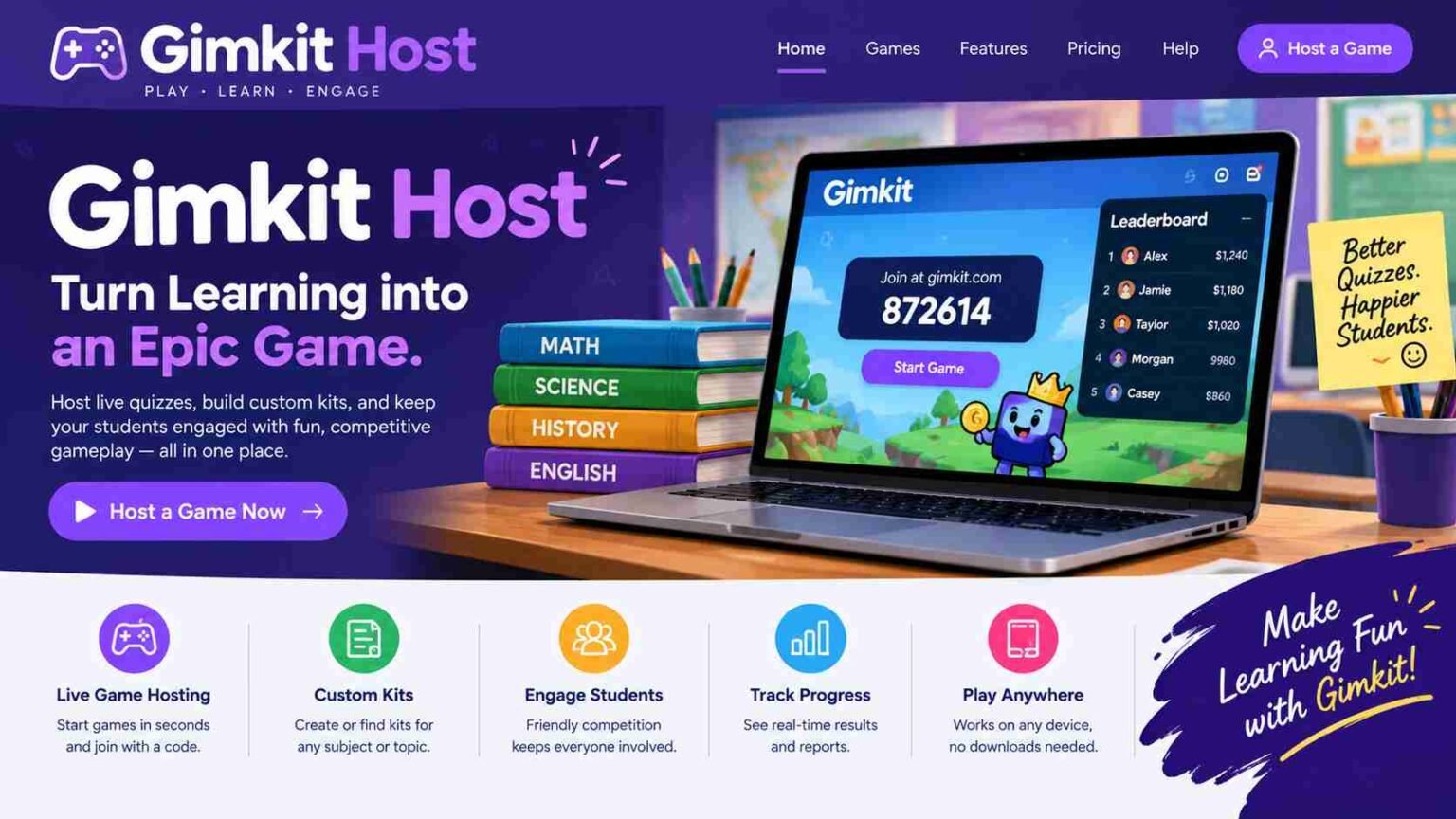
The term gimkit host refers to the person who creates and manages a live game session. A host usually selects a question set, chooses a game mode, adjusts the available settings, and shares a joining code with players. Teachers and tutors often host games, but the exact options available can depend on the user’s account and the selected game mode.
Learning how to use Gimkit as a host can make classroom activities easier to organize. It can also help students join games without confusion. From choosing a Kit to managing players and solving common connection problems, understanding the hosting process is useful for both beginners and experienced users.
In this guide, you will learn how to host a Gimkit game, find and share a game code, understand the main settings, explore game modes, and fix common problems. You will also discover practical tips for running a smooth and enjoyable learning session.
What Is a Gimkit Host?
A Gimkit host is the person responsible for setting up and managing a live game. In a classroom, this person is usually a teacher who wants students to practise a subject in an enjoyable way. Tutors and other learning activity leaders may also use the platform to review questions with a group.
The host controls the main setup process. This includes selecting a question set, choosing an available game mode, reviewing the rules, and deciding how participants will join. Once the lobby is ready, the host shares the game code or joining link so that students can enter the session.
Gimkit uses question sets called Kits. A Kit contains questions and answers that form the learning content for a game. For example, a teacher might select a Kit about mathematics, science, history or English vocabulary. The game then uses those questions according to the selected mode. Hosting is different from joining. The host organizes the session and starts the game, while students normally enter the session and answer questions. Some modes may allow the host to participate as well.The main purpose of a Gimkit host is to make a learning activity easy to manage. With suitable questions and clear instructions, a host can help students practise important information while keeping the session organized.
How to Host a Gimkit Game Step by Step?
Hosting a game is straightforward once you understand the main steps. The names or positions of some options may change as Gimkit updates its website, but the general process starts with choosing a Kit and ends with launching the live session.
Step 1: Open the Official Gimkit Website
Visit Gimkit and sign in to your account if required. Open your dashboard and look for the available Kits or game options. The features you can access may depend on your account type.
Step 2: Select or Create a Kit
Choose an existing Kit that matches your lesson. If you cannot find suitable questions, you may be able to create your own Kit using the available tools. Review the questions before the session to make sure they are correct, clear, and suitable for your students.
Step 3: Choose a Game Mode
Select the option to play a live game and review the available modes. Some modes focus mainly on answering questions, while others include team activities or interactive environments. Choose one that fits your learning goal, class size, and available time.
Step 4: Customize the Game Settings
Review the available settings before moving forward. Depending on the mode, you may be able to adjust the game goal, joining rules, nickname options, or other features. Read each option carefully so that the rules match your classroom needs.
Step 5: Open the Lobby and Share the Code
After setting up the game, open the lobby. Gimkit provides joining information for the session, which may include a game code, QR code, or link. Share the available options with students and give them time to join.
Step 6: Start and Manage the Game
Check that students have entered the correct session. Explain the rules and answer any questions before starting. Select the start option when everyone is ready. During the game, use the available host controls to monitor participation and manage the session.For the latest instructions, consult the official Gimkit Help Center.
How to Get a Gimkit Host Code?
A Gimkit host code is a temporary code that helps players enter a particular live game. It is normally generated during the hosting process and displayed in the game’s lobby. Students need the current code to join the correct session.
To get a code, sign in to Gimkit, select a Kit, choose a live game mode, and complete the setup process. Once the lobby opens, look for the joining information displayed on the screen. Depending on the available interface, you may also see a QR code or a direct joining link.
The host can display the code on a classroom screen, write it where students can see it, or share it through an approved online classroom platform. For remote lessons, sending the joining link can make the process easier because students may not need to enter the code manually.
It is important to understand that a game code is not the same as an account password. It is used to enter a particular session, and it may stop working when the game ends or the session becomes unavailable.
If you are a student searching for a Gimkit host code, you generally need to obtain it from the teacher or person running the game. Random codes found on websites may be expired or unrelated to the session you want to join. Always use the joining information supplied by your host.
How to Join a Gimkit Game as a Student?
Joining a Gimkit game is usually simple. First, ask your teacher or host for the current game code or joining link. Then visit the official Gimkit Join page and follow the instructions displayed there.If you are using a game code, enter it carefully in the required field. Check that you have not missed a number or typed the wrong character. Depending on the session settings, you may need to enter a nickname or sign in through a class-related option.
After entering the correct information, follow the prompts to join the lobby. Wait for the host to start the game and read any instructions shown on your screen. If the game has already started, your ability to join may depend on the host’s settings and the selected mode.
Students should avoid opening unrelated websites that claim to provide private or special Gimkit codes. The safest option is to use the official joining page and the code shared by the person hosting the session.
If you cannot join, check your internet connection and confirm that the code is still active. Ask the host to verify the code or send the link again. In some classrooms, students may need to use a specific class connection or follow additional instructions from their teacher.
How does Gimkit Host Settings Work?
Gimkit host settings help you control how a live session runs. The options available can differ between game modes and may change as the platform develops. Before starting, take a few minutes to review the settings so that students understand what to expect.
Game Goals and Timers
Some modes use a time limit, while others focus on reaching a particular goal. These options influence how long students play and how they progress through the activity. Choose a setup that gives students enough time to answer questions without making the lesson feel rushed.
Join-in-Late Settings
Late-joining options can be useful when students arrive at different times or experience connection problems. If the selected mode supports late joining, decide whether students should be allowed to enter after the game begins. For a short classroom activity, limiting late arrivals may help keep the session organized.
Nickname Generator and Class Settings
Nickname settings help hosts manage how players appear in a game. An available nickname generator can reduce the use of unsuitable names and make classroom sessions easier to supervise. Class-related features may offer additional ways to manage participation, depending on the setup.
Game Mode-Specific Settings
Not every game mode has the same controls. Some focus on answering questions, while others include extra gameplay features. Review the options shown on the setup screen rather than assuming that a setting available in one mode will also appear in another.
Popular Gimkit Game Modes for Hosts
Choosing the right game mode can make a major difference to the learning experience. The best option depends on the lesson, the number of players, and whether you want students to focus on quick answers, teamwork, or interactive gameplay.
Classic-style quiz activities are suitable for straightforward revision. They allow students to practise questions and see how well they understand a topic. A teacher might use this type of session before a test or at the end of a lesson to review key information.
Team-based activities can encourage students to work together when a suitable mode is available. They may be useful for group revision, classroom competitions, and activities that involve shared goals. However, the host should explain the rules clearly so that every student understands how to participate.
Interactive 2D modes add movement and other game objectives to the learning experience. These modes may offer a different style of participation from traditional quiz gameplay and can be useful when students enjoy more active challenges.
Gimkit’s available modes may change over time, and access can depend on the platform’s current offerings and account requirements. Before planning a lesson around a particular mode, check whether it is available to your account.The most effective choice is not always the most complicated game. Select a mode that supports the learning objective and leaves enough time to discuss the answers afterward.
Gimkit Host Controls and Features
Host controls help you manage a game while students are playing. The exact controls depend on the selected mode, so it is helpful to become familiar with the available options before using Gimkit in front of a class.
During a session, the host may be able to view the player list, display the leaderboard, or check the remaining time. These features help you understand how the game is progressing and whether students are participating. A leaderboard can add excitement, but it should not be the only way you measure learning.
Some modes provide sound or music controls, options to add time, and tools for managing players. In supported 2D games, hosts may also be able to spectate players or remove someone from the session. These controls are useful if a player has trouble following the rules or disrupts the activity.
Hosts may also have an option to end a game before it finishes naturally. This can be helpful if the class period ends early or the session needs to stop for another reason. Before using this option, explain what is happening so that students are not confused.
Remember that controls for 2D games may differ from those used in other modes. If you cannot find a feature, check the instructions for the specific mode rather than assuming your account is not working correctly.
Benefits of Hosting a Gimkit Game
One of the main benefits of hosting a Gimkit game is that it gives students another way to practise what they have learned. Instead of completing only a traditional worksheet, they can answer questions through an interactive activity. This can make revision feel more engaging, especially when the questions are connected to a topic they already know.
Gimkit can also help teachers identify areas that need more attention. If students struggle with particular questions, the teacher can revisit those concepts and explain them in a different way. The game therefore becomes more than a competition; it can be part of a wider learning process.
The platform can support individual participation and, where available, team-based activities. Teachers can choose an approach that suits their students and lesson goals. For example, an individual quiz may help students check their own understanding, while a team activity may encourage discussion and cooperation.
Gimkit can be used in classrooms, tutoring sessions, and remote lessons. Online participants can join through the available joining information, making it possible to organize activities when students are not in the same room.
However, a game does not replace clear teaching. Students may focus on winning rather than understanding the material if the activity is not planned carefully. The best results come when the host combines appropriate questions, clear rules, and a short review of important answers after the session.
Common Gimkit Host Problems and How to Fix Them?
Even a well-prepared game can have technical problems. Most issues can be investigated by checking the joining information, internet connection, and settings.
The Gimkit Game Code Is Not Working
First, check that the code has been entered correctly. Then confirm with the host that the game is still active and that the code belongs to the current session. If the problem continues, ask the host to share the latest code or joining link.
Students Cannot Join the Lobby
Make sure students are using the official joining page and the correct code. Check whether the internet connection is working and whether the host has enabled the required joining options. If only one student is affected, try another supported browser or device if available.
The Game Is Slow or Disconnects
A weak internet connection can interrupt gameplay. Check the network, close unnecessary tabs, and pause other activities that may use a large amount of bandwidth. If the session disconnects, follow the host’s instructions before refreshing the page or attempting to rejoin.
A Student Has an Inappropriate Nickname
Review the available nickname settings before starting future games. If the current mode provides player-management controls, use them when necessary. A nickname generator or suitable class settings may also help prevent similar issues in later sessions.
The Start Game Button or a Feature Is Missing
Check whether you have completed the setup process and reached the correct lobby. Some features may only appear in certain modes or account types. If the option is still missing, consult the Gimkit Help Center for current instructions.
Tips for Hosting a Successful Gimkit Session
A successful game starts with good preparation. Review the Kit before class and check that its questions match the lesson. Correct mistakes, remove confusing questions where possible, and make sure the difficulty is suitable for your students.
Choose a game mode that supports your objective. If you want to revise facts quickly, a straightforward quiz may be enough. If your goal is to encourage teamwork, choose an appropriate mode that supports group participation. Explain the rules before starting so that students spend less time asking how the game works.
Test the joining process when possible. Keep the game code visible, or share the link through an approved classroom platform. Give students a moment to enter the lobby and resolve any problems before you begin.
During gameplay, monitor participation and use the available controls responsibly. If competition becomes distracting, remind students that the purpose is to learn rather than simply to reach the top of the leaderboard.
After the game, review difficult questions with the class. Ask students to explain their answers and clarify common mistakes. If reports or results are available for your session, use them to identify topics that need further practice. This final review helps turn a fun activity into a useful learning experience.
Is Gimkit Host Free to Use?
Gimkit offers access to its learning platform, but the features available to a particular user may depend on the current plan and account type. It is therefore important to distinguish between being able to access Gimkit and having access to every game mode or hosting feature.
Before organizing a large session, check the current plan details and any applicable player limits. Do not assume that every mode, class feature, or option is included in every account. The platform’s rules and offerings may change over time.
Teachers should also check whether their school provides an account or access arrangement. Using an appropriate account can make it easier to manage classroom activities and understand which features are available.
For accurate information, visit the official Gimkit website and consult its Help Center. These sources are more reliable than third-party claims about free access, premium features, or hosting limits.
Gimkit Host vs. Gimkit Join: What Is the Difference?
The terms host and join describe two different roles in a live Gimkit game. Understanding the difference helps new users know which page to open and what they need to do.The host organizes the session. This person selects the Kit, chooses an available game mode, reviews the settings, and shares the joining information. The host also starts the game and manages the available controls.
A student or participant usually joins an existing session using the code or link supplied by the host. The participant follows the joining instructions and answers questions according to the rules of the selected mode.
| Feature | Gimkit Host | Gimkit Join |
| Main purpose | Set up and manage a game | Enter an existing game |
| Select a Kit | Usually yes | Usually no |
| Configure settings | Yes, where available | No |
| Use a joining code | Generates or shares it | Enters or follows it |
| Start the session | Yes | Waits for the host |
| Participate in questions | Depends on the mode | Usually yes |
In short, choose the hosting options when you want to organize a game. Use the joining page when someone has already created a session and given you the joining information.
Frequently Asked Questions
1. Can I prepare a Gimkit game before my lesson begins?
Yes. You can prepare by selecting a suitable Kit, reviewing the questions, and deciding which game mode to use. You can also familiarize yourself with the settings before students arrive. Start the live session when you are ready to share its joining information.
2. What should I do if a student loses connection during a game?
Check whether the game is still active and ask the student to reconnect using the current joining information. Whether they can return to the session depends on the mode and its settings. Avoid restarting the entire game unless it is necessary.
3. Can I use Gimkit to teach subjects other than mathematics?
Yes. Gimkit can support different subjects as long as you have suitable questions in a Kit. Teachers may use it for language learning, science, history, vocabulary practice, and other topics that can be reviewed through questions and answers.
4. How can I make a Gimkit game suitable for younger students?
Choose clear questions, use age-appropriate language, and explain the rules before starting. Keep the activity manageable and focus on learning rather than intense competition. Review the available nickname and player-management settings to help maintain an appropriate classroom environment.
5. What should I do after finishing a hosted game?
Use the end of the session to review challenging questions and correct misunderstandings. If your account provides useful results or reports, check which topics students found difficult. Use this information to plan a follow-up explanation, worksheet, or practice activity.
Conclusion
Using a Gimkit host account or hosting feature can make classroom revision more interactive and easier to organize. The basic process involves choosing a Kit, selecting a game mode, reviewing the settings, sharing the joining code, and starting the session when participants are ready.A successful game also depends on preparation, clear instructions, and a suitable learning goal. If students experience joining problems, check the code, connection, and current game settings before trying other solutions.
For More Information Visit: CloudsMagazine